The Studio guide.
Start with a person. Shape their visual world, collect references, and keep the work you want to use. These walkthroughs show you where to begin.
Narrated tour of Baste, recorded October 10, 2026 · English narration with English or French captions. The archive replays a recorded fal run.
Read the transcript
0:00 · A person
Most interfaces are cut for “users aged twenty-five to thirty-four.” Nobody in that bracket has taste. A person does.
0:08 · Measure
Baste starts with one person: the films they rewatch, the music they work to, the rooms they feel at home in, and the things they can’t stand in an app.
0:19 · Fitting room
Then it fits an interface to them. Same screen, three people. The layout, the type, the colour and the motion all change.
0:27 · Baste
To find a direction, Baste tries dozens of loose versions, warm and cool, sparse and dense, and a vision judge looks at every one.
0:37 · Fit
It keeps the best in each region, not one winner. So you see the real range of options before anything is final.
0:45 · Cut
What comes out is ready to use: images, vector icons, ambient loops, and design tokens for CSS, Tailwind or Panda.
0:54 · Talk
And you can ask the persona why. They’ll tell you, in their own words, what they love and what would make a design feel like theirs.
1:03 · Yours
Bring your own people. Measure them in the Studio, and cut something that fits.
Watch a fitting.
Start with Baste in 74 seconds, follow the current worktable, or take the longer narrated walkthrough in English or French.
Open Studio →Find your way around
The wardrobe holds your personas. Choose one, or use New persona to describe someone of your own. Fitting shows what their films, music, spaces and habits become in an interface.
The worktable has two groups: Measure contains Fitting, Material and Tokens; Make contains Generate, Moodboard and Taste. OpenPencil is inside Tokens. Brand kit appears for custom personas. Projects and Settings open separate views.
Check the connection indicator. Demo work stays in this browser tab and resets on reload. Live means Studio reached its server; check Settings for your account and available services. Download anything you want to keep before leaving a demo.
Open this view →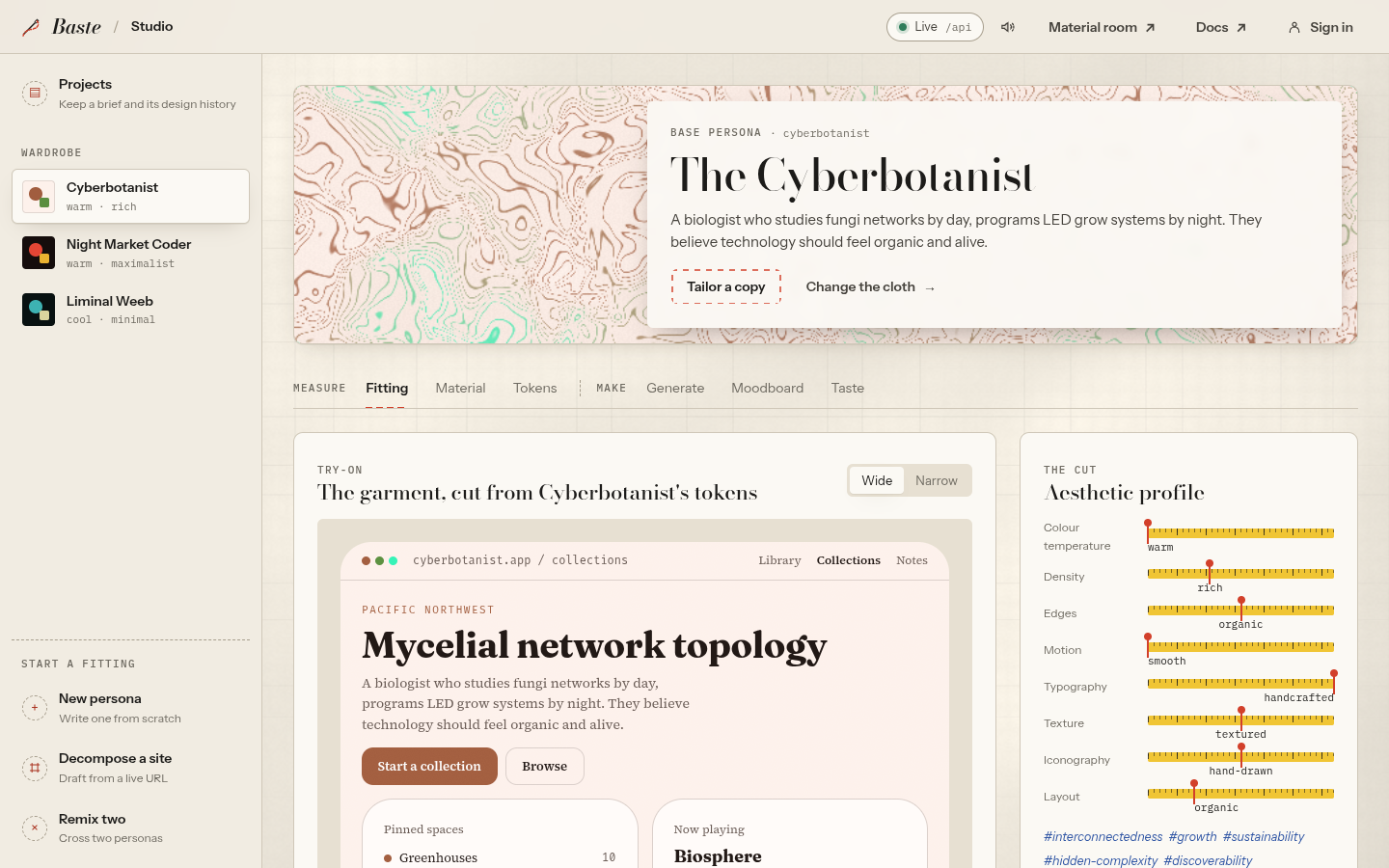
Talk with a companion
Meet Moss, Ren and Ada on the home page. Each has a different cultural world and a conversation about their taste. The label tells you whether you are exploring an authored guided demo or an AI conversation.
When voice is available, tap Talk and allow microphone access. Tap Finish when you are done; you can speak for up to 45 seconds. Your audio goes to fal for transcription. Review or edit the words in the message field, then press Send. Cancel discards the recording.
Turn on Spoken replies to hear future answers, or choose Listen to reply for the latest one. The indicator distinguishes listening, thinking, preparing a voice, speaking and paused playback. Pause keeps your place; Resume continues; Stop ends playback. Switching companions or leaving the tab stops the microphone and audio.
Typing remains available when voice is unavailable or permission is denied. The conversation keeps each companion’s messages and draft while you switch, but does not save them across a page reload.
Open this view →Read the fitting
Fitting turns the persona into a visible system: palette roles, typography, spacing, edges, motion and an interface specimen. Compare the preview with the cultural measurements rather than choosing a palette in isolation.
Scroll through the specimen to inspect buttons, fields, cards, navigation, status and messaging. Hover interactive samples to feel motion. Changing the selected persona updates the fitting and the other tabs.
The fitting is a preview, not a deployed application. Contrast, content length and interactions still need validation in the interface where you will use the tokens. Demo custom personas borrow the nearest built-in token fixture; their measurements do not trigger fresh token generation.
Open this view →Create a persona
Choose New persona. Enter a name, check its generated slug, add a region and a short description. The slug is a lowercase identifier used in routes and file names; it is separate from the display name.
Fill Culture with subcultures and values. In Influences, list films, anime or shows, music genres, musicians and visual artists. Habitat covers spaces, tools and obsessions. Behaviour captures software values and pet peeves. Separate list items with commas.
In The cut, choose the aesthetic axes, then add visual and mood keywords. Be concrete: a named film, a familiar place and an actual working habit give a clearer brief than a generic adjective. The completion meter counts filled measurements; it is not a quality score.
Select Add to wardrobe. A successful save selects the new persona and returns to Fitting. A name is required. Keep a unique slug to avoid replacing another custom persona. Cancel returns without saving the form.
Open this view →Tailor, edit and remove
Tailor a selected base persona to open a prefilled copy. Give the copy its own name and slug, preserve useful influences, and replace the details that do not fit your audience. The original base persona remains unchanged.
Custom personas expose editing controls. Edit updates measurements while keeping the existing slug. Save measurements returns to the fitting. Form edits are not autosaved; cancel discards them.
Removal is available for custom personas through the hold-to-delete control in the selected persona’s header. Hold it deliberately; base personas cannot be removed. Demo deletions affect this tab only. Export anything you need before resetting the demo.
Open this view →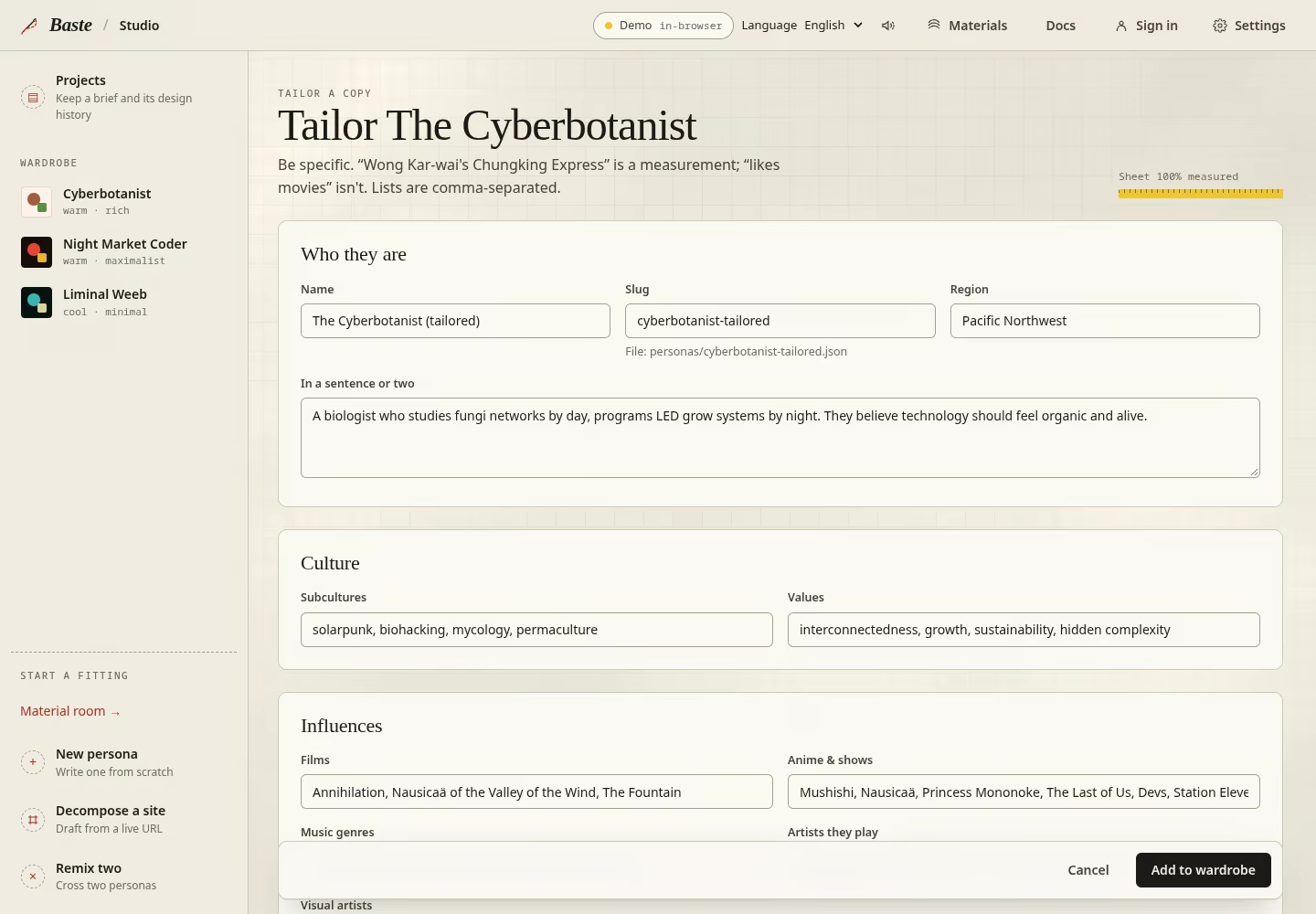
Change the cloth
Open Material, or choose Change the cloth in the persona’s header. The starting material comes from their palette and aesthetic profile. Adjust the technique, colours, scale and density while watching the preview.
Changes update the persona’s header and save in this browser. Pause motion when you want to inspect a still frame. Export PNG keeps an image; Save recipe keeps the settings so you can load and revise them later.
Open this view →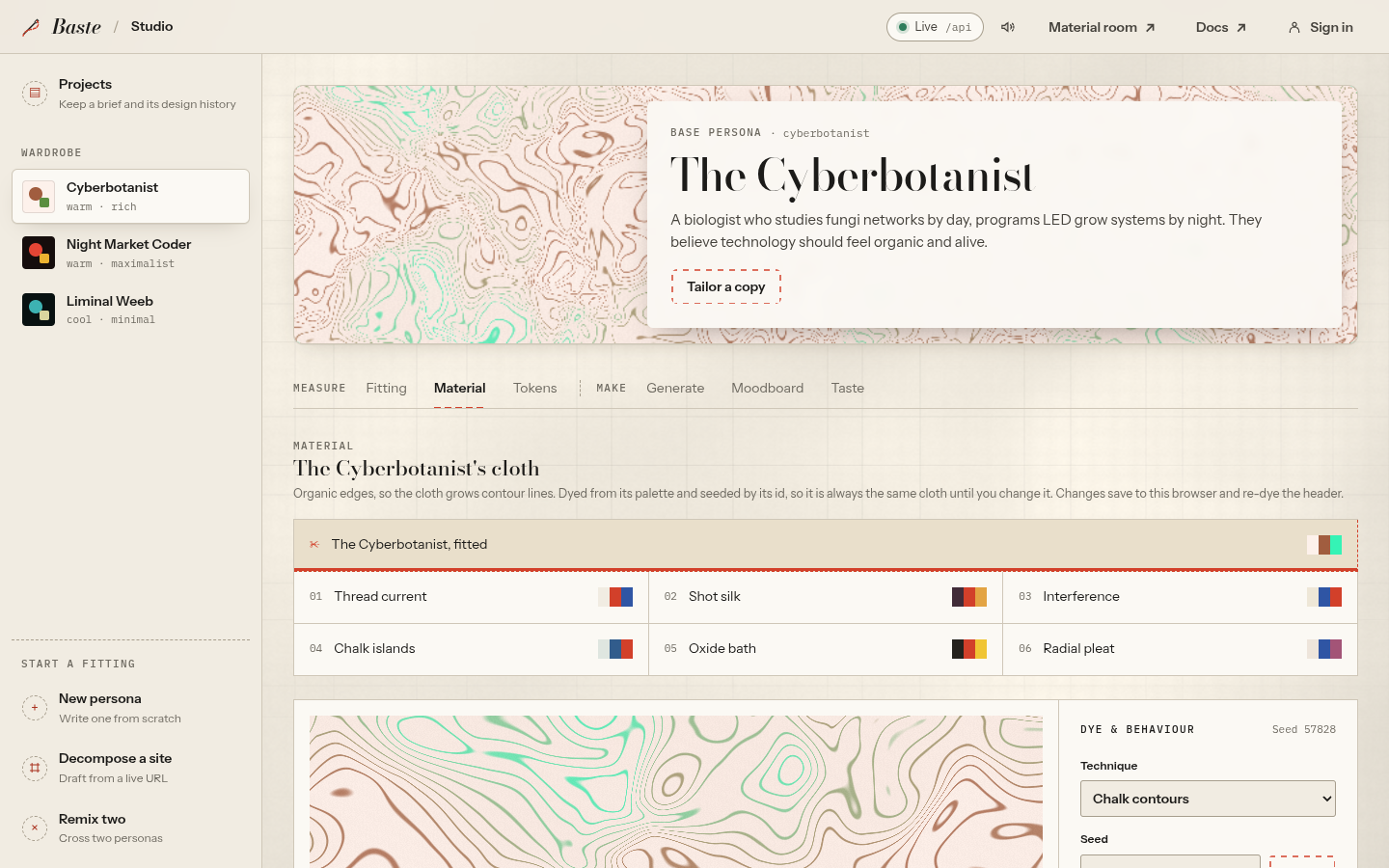
Export design tokens
Open Tokens and choose CSS variables, Tailwind, Panda or JSON. The code panel updates for the selected format. CSS produces .css, Tailwind .js, Panda .ts and JSON .json.
Copy sends the displayed export to the browser clipboard. Download saves a file named after the persona. If clipboard access is denied, use Download or select the code manually. The code and variable identifiers stay unchanged when the UI language changes.
The side panels show the spacing scale, radius and shadow samples, and easing curves. Hover an easing row to preview motion. These are integration references, not an automatic installation into your app.
Downloads survive a demo reset because they are browser files. In the demo, saving an OpenPencil document does not regenerate these exports; export tokens and the editable document are separate demo stores.
Open this view →Draft prompts and generate
Open Generate and leave Dry run enabled for your first attempt. Choose Asset suite or Full UI kit, then Draft the prompts. Read the image, SVG and video briefs before making images.
In the browser demo, the built-in personas replay a recorded run, as in the recording below, and your own personas draft prompts only; nothing new is generated. With generation available, choose an image model and review your spending limit before turning off Dry run. Follow the job’s progress and reopen earlier jobs from the history.
Hosted generation covers images and judging, plus editing, segmentation and animation when the account provider enables them. A full kit still needs SVG services. If a service is unavailable, you can still draft prompts and continue refining your persona.
Open this view →Understand hosted run limits
Choose Not Organic to load the connected account’s authorized image models and wallet. If the catalog, judging model or verified balance is unavailable, follow the account prompt before attempting paid generation.
Iterations, Batch size and Per purpose determine how many candidates and final outputs the run explores. Maximum spend for this run is a USD ceiling, initially $1. The live plan counts image and judging requests, plus selected edits, segmentation attempts and animation jobs, before enabling a paid run.
If the plan exceeds your maximum, reduce candidate counts or explicitly raise the maximum. If it exceeds the operator’s server limit, reduce the maximum or candidates, or contact the operator. Insufficient or blocked wallet credit also prevents the run.
Conservative request ceilings are spending limits, not quoted provider prices. Refresh the account to verify a missing balance. Prompt drafts remain available when paid generation is blocked.
Open this view →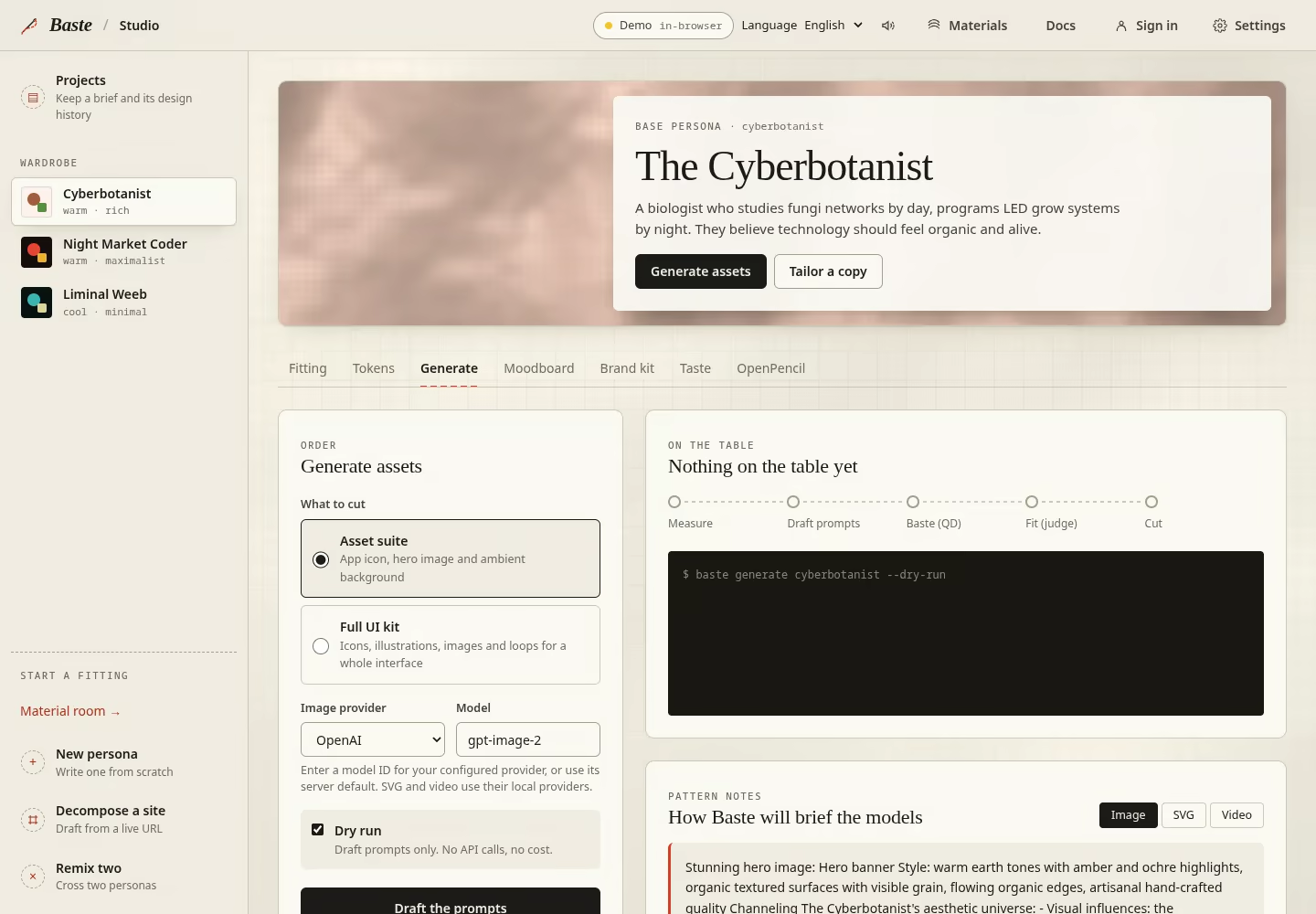
Build a moodboard
Paste an image URL under Pin a reference, add comma-separated tags and select Pin it. The card appears on the board. Use your own or appropriately licensed references; Baste does not grant rights to external images.
Pin or Unpin changes priority; pinned cards sort first. Split copies a card’s URL into the sheet cutter. The remove control deletes the reference from the board, not the upstream image.
Edit Vibe words as a comma-separated list. Notes save when you leave the field, so click elsewhere after typing and check the saved message. These notes and references are associated with the selected persona.
Demo boards reset on reload. If an image does not load, check its source URL; your note may still be saved.
Open this view →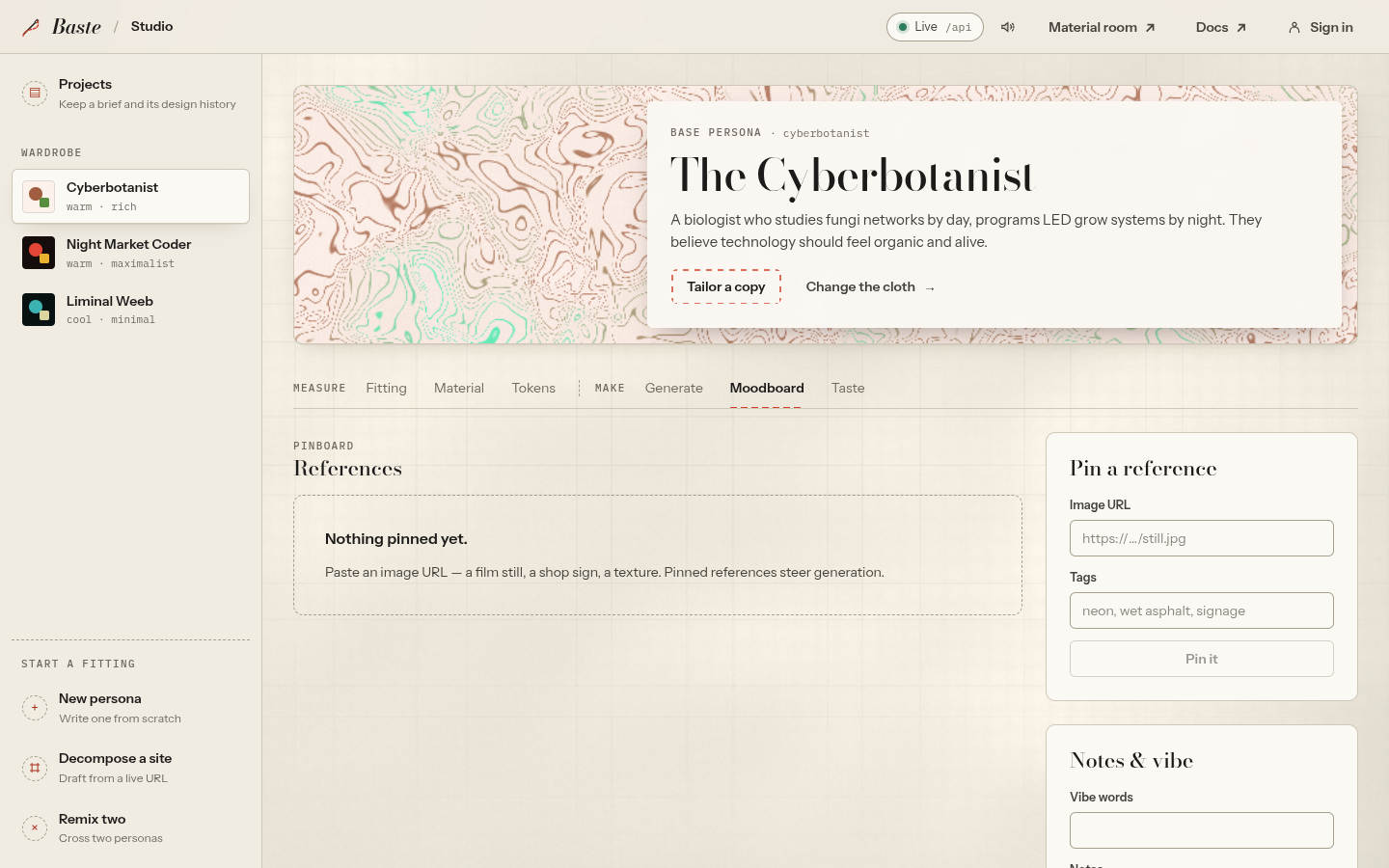
Cut a reference sheet
In Split a sheet, provide an image URL or local path and choose Columns and Rows, each from 1 to 8. Cut into shows the resulting cell count. A successful server response displays the cell grid.
Sheet cutting requires the local server. The demo can collect the URL and grid choices but returns a server-required error when you try to cut. It does not generate a fake grid. Check the connection before retrying.
Open this view →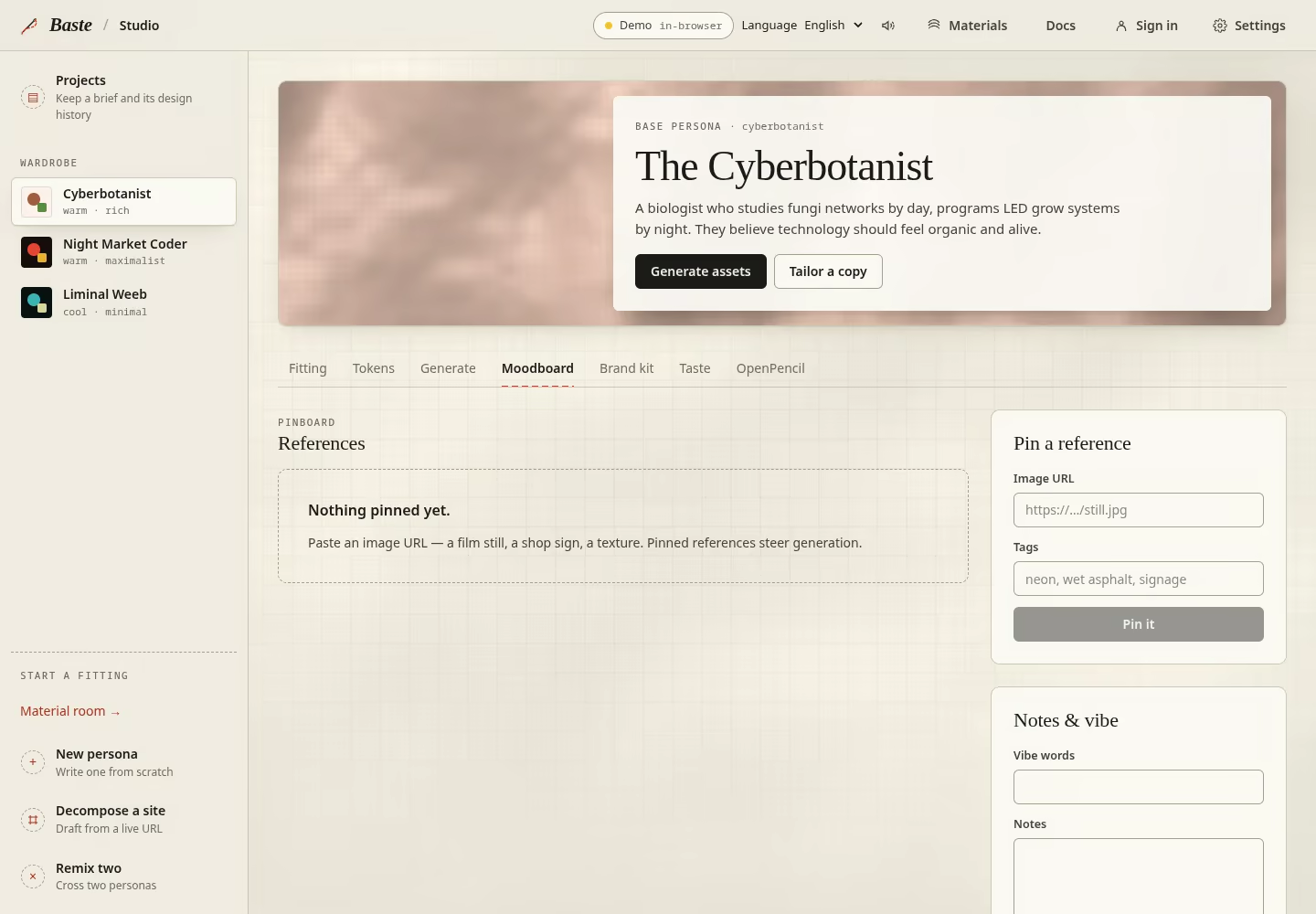
Inspect a brand kit
Brand kit appears for custom personas. It fills with colours, fonts, a logo and imagery when you create a persona by decomposing a website. An empty kit means no website has been captured for that persona.
Compare the collected references with the source website before using them. Some fonts or images may be missing if the source blocks access or loads them later.
Open this view →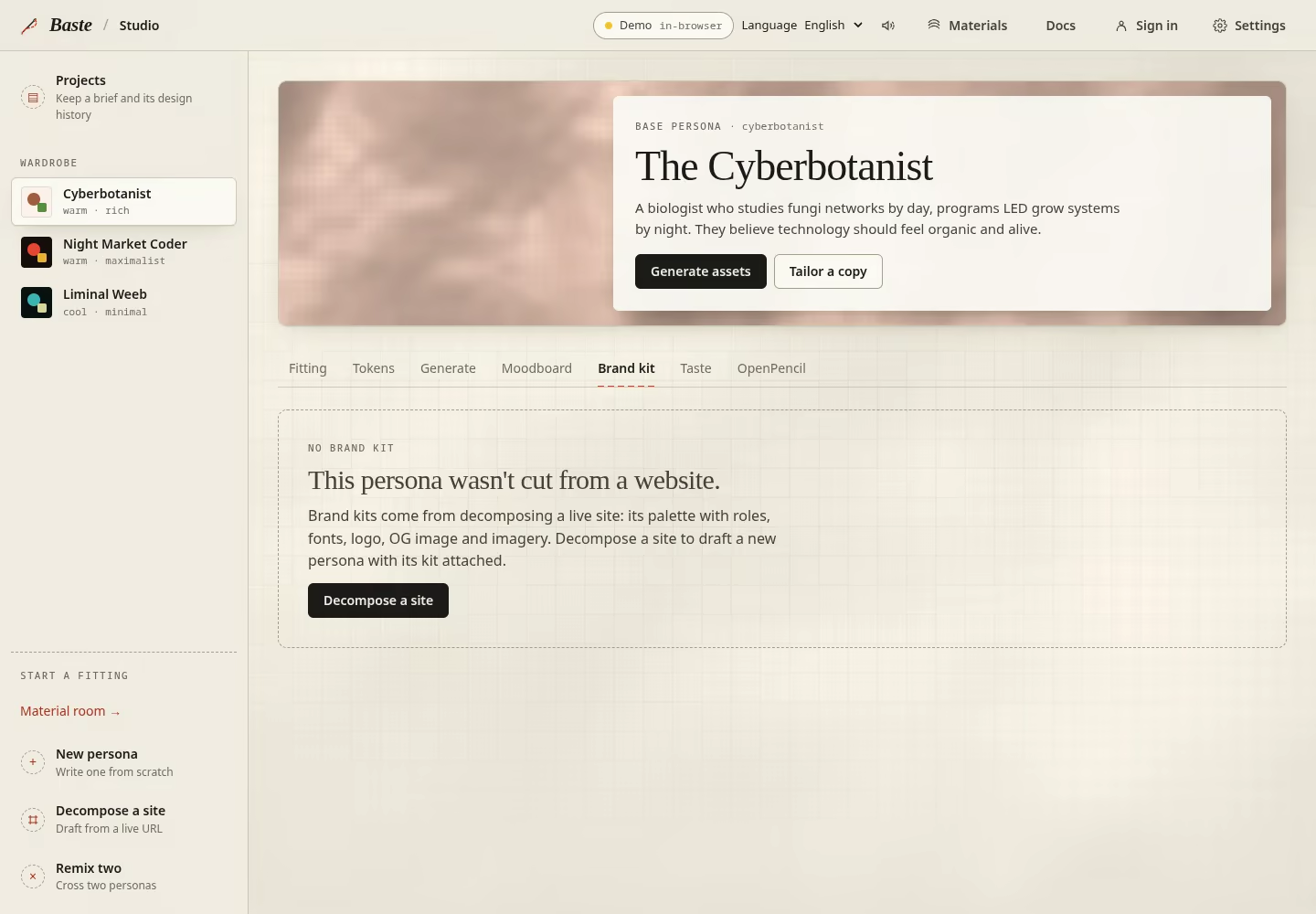
Shape their taste
Open Taste. Enter the asset ID, explain Why, and optionally add tags. Choose More like this or Less like this. A useful comment names what worked or what felt wrong for this particular person.
Recent verdicts keep your explanation. The learned-taste panel collects the patterns in your feedback for later rounds. A rating guides future work; it does not edit the image you rated. Demo feedback resets when the tab reloads.
Open this view →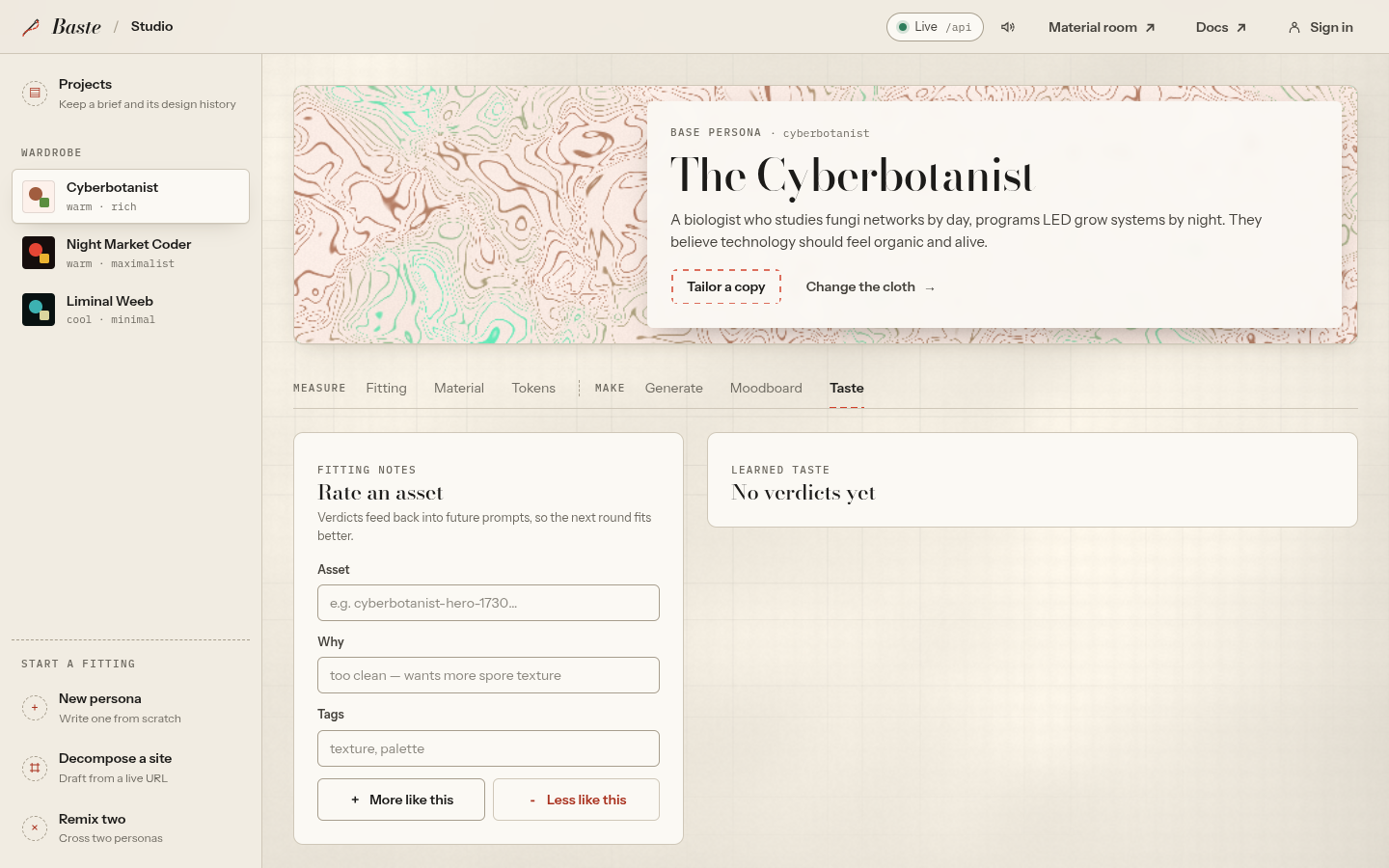
Edit an OpenPencil document
Open Tokens, then choose Edit in OpenPencil. Filter tokens searches names and values. Edit a value directly, or use the colour picker for a colour. Choose Save document to keep the changes.
A base persona keeps its original measurements; its editable document is separate. Demo document changes stay in this tab and do not update the downloadable token examples. Native file export and file watching require a local installation.
Open this view →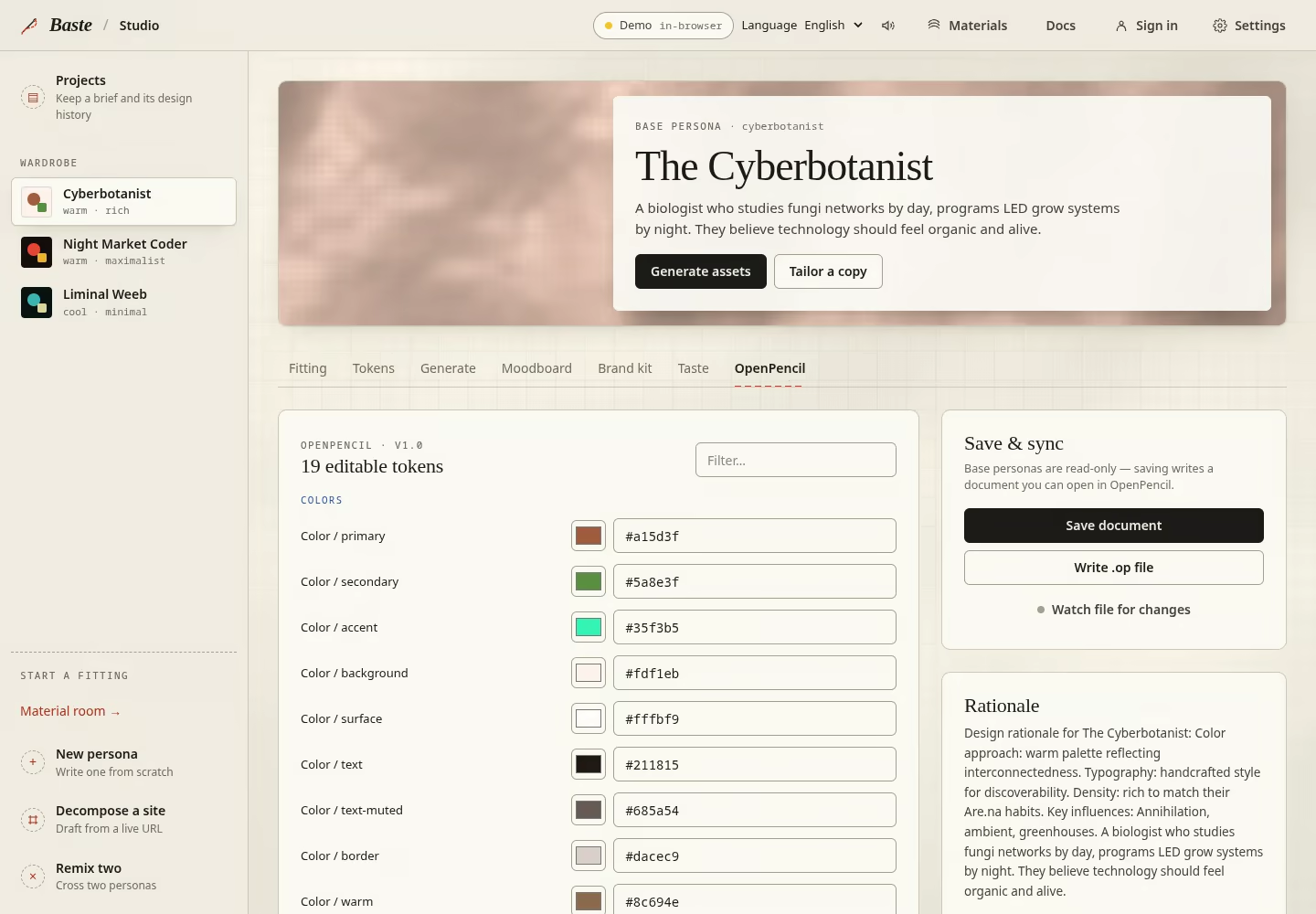
Decompose a website
Provide the source URL. Slug and Display name are optional overrides; otherwise the server derives them from the domain and title. Seed the moodboard adds extracted imagery as references. Deep render runs page JavaScript through Playwright for sites that need it.
Mirror assets saves the logo, Open Graph image and thumbnails to disk. Start version history tracks later persona changes. Choose only the options you need, then Decompose. Progress labels describe the stages; a successful result offers See the fitting and Open brand kit.
Website capture needs a connected service. If Decompose is unavailable, keep the reference URL on your moodboard and continue with a persona of your own.
Open this view →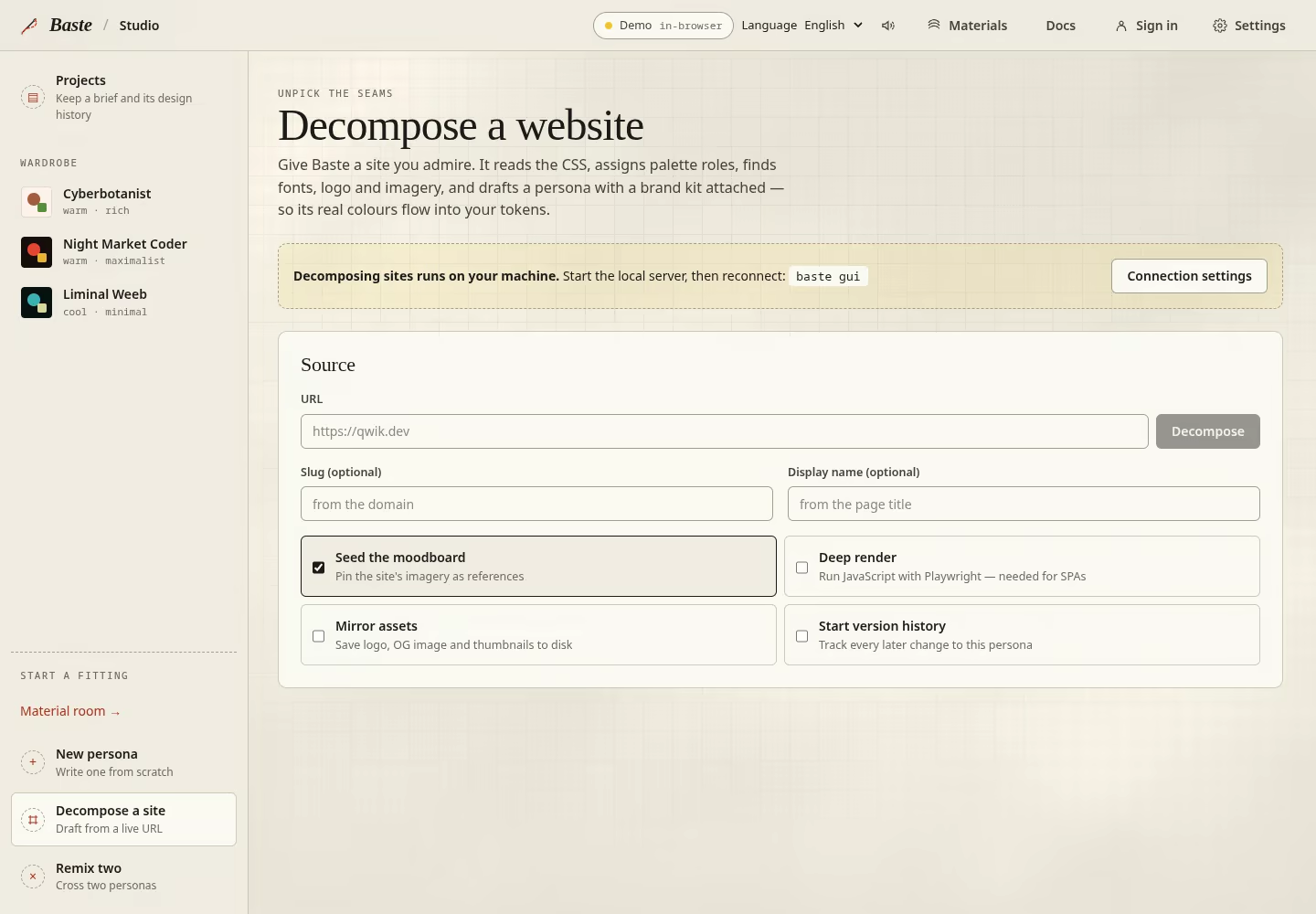
Remix two personas
Choose two different personas as Warp and Weft. The woven swatch compares their primary palettes; it is a preview, not a generated asset. Enter an optional slug and name, or use the suggested combination.
Weave them together creates a persona from both sets of influences when the service is available. Choose different personas. Remix is unavailable in the browser demo.
Open this view →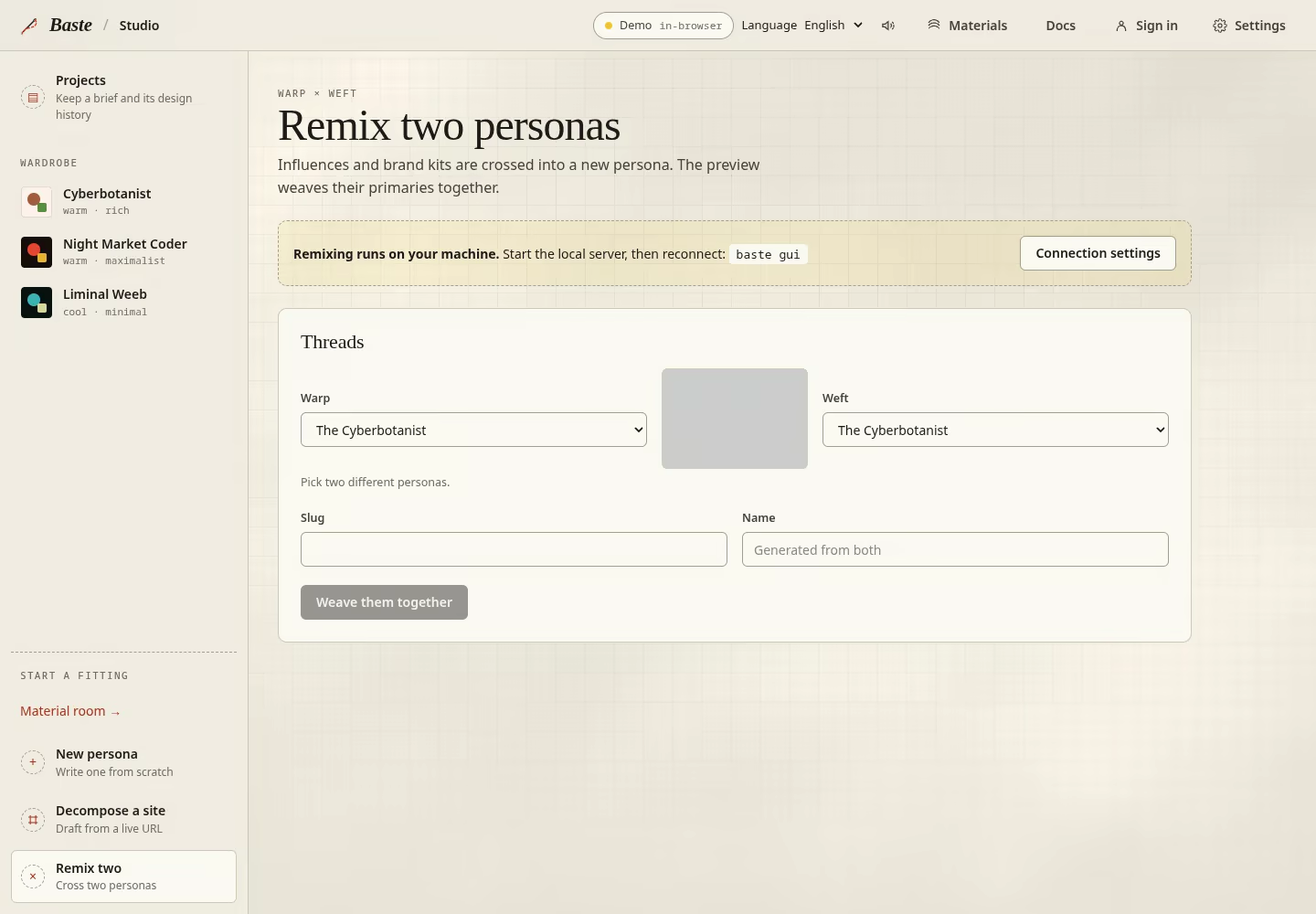
Keep a saved project
Projects separates the application brief from a design persona. Saving requires a live Baste server with the account integration configured and an authenticated account. The browser demo shows a connection gate instead of pretending to save a project.
The connected UI contains a project list, a name and brief form, optional audience selection, editable details and version history. Choosing an existing persona gives the project its own audience copy. Save brief and Save audience are explicit actions.
If a newer revision conflicts with your draft, load the latest saved version, compare it, then keep your draft for the next save or replace it with the saved version. Restore creates a revision from earlier content. These connected behaviors are documented from the current source; they were not exercised against a real account.
Open this view →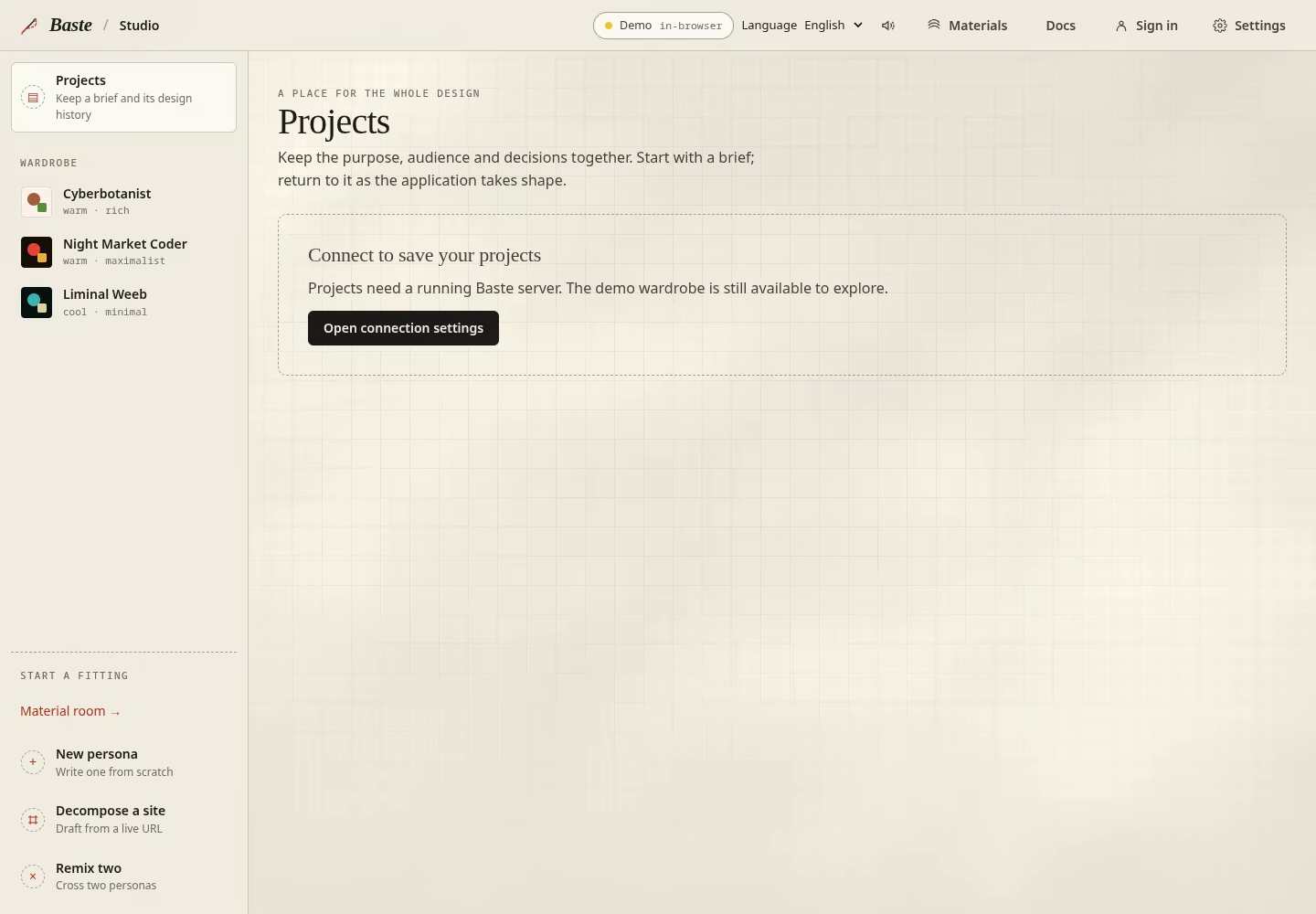
Connect the workroom
Open Settings to check your connection and account. If the indicator says Demo, changes stay in this tab. Download your token exports before reconnecting, since reconnecting starts a new work session.
On a hosted Studio, choose your available model in Generate. Connection addresses, provider keys and server defaults are covered in Developer docs for people running their own installation.
Open this view →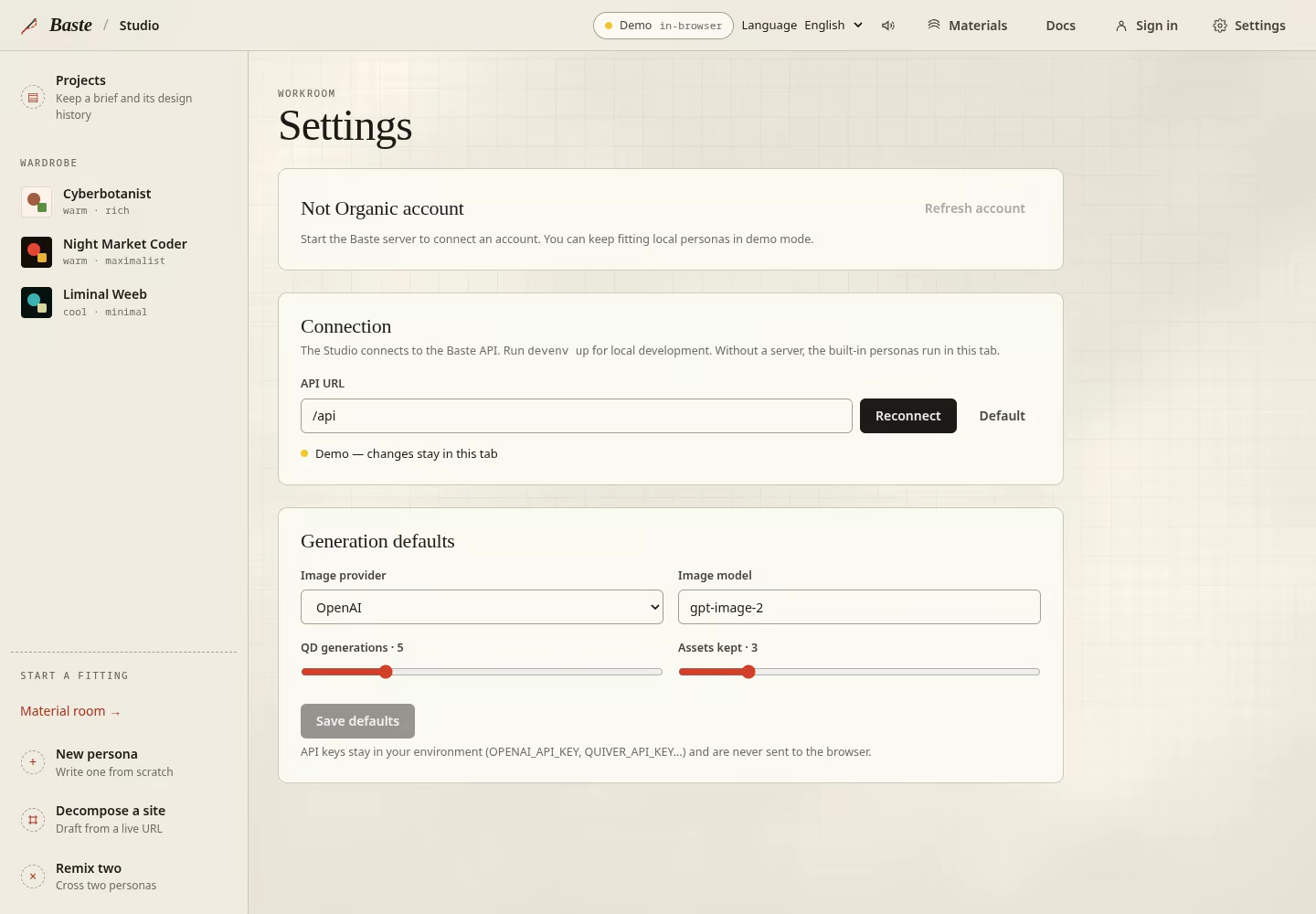
Account, wallet and checkout
In Settings, choose Sign in / create profile when it is available. Your account is what you use to return to your work. A design persona is the person you are designing for; it is separate from your account profile.
Your wallet shows available credit and purchase offers. Review the price at checkout. When you return to Studio, refresh the wallet to check that the credit has arrived before starting generation.
If sign-in or checkout is unavailable, use the demo and download your exports. The recorded tours do not show a purchase or paid generation.
Open this view →Use the material library
The Materials route is a separate public reference page. Inspect the material examples and their available controls, then return to Studio to use the persona’s tokens. Materials do not create a saved project or start provider generation.
Start from one of six studies: Thread current, Shot silk, Interference, Chalk islands, Oxide bath or Radial pleat. Choose a technique and seed, edit ground/warp/weft colours, and adjust hue, scale, density, distortion and dye strength. Palette presets and Shuffle explore alternatives. Pointer movement bends the preview; tapping sends a ripple.
Open this view →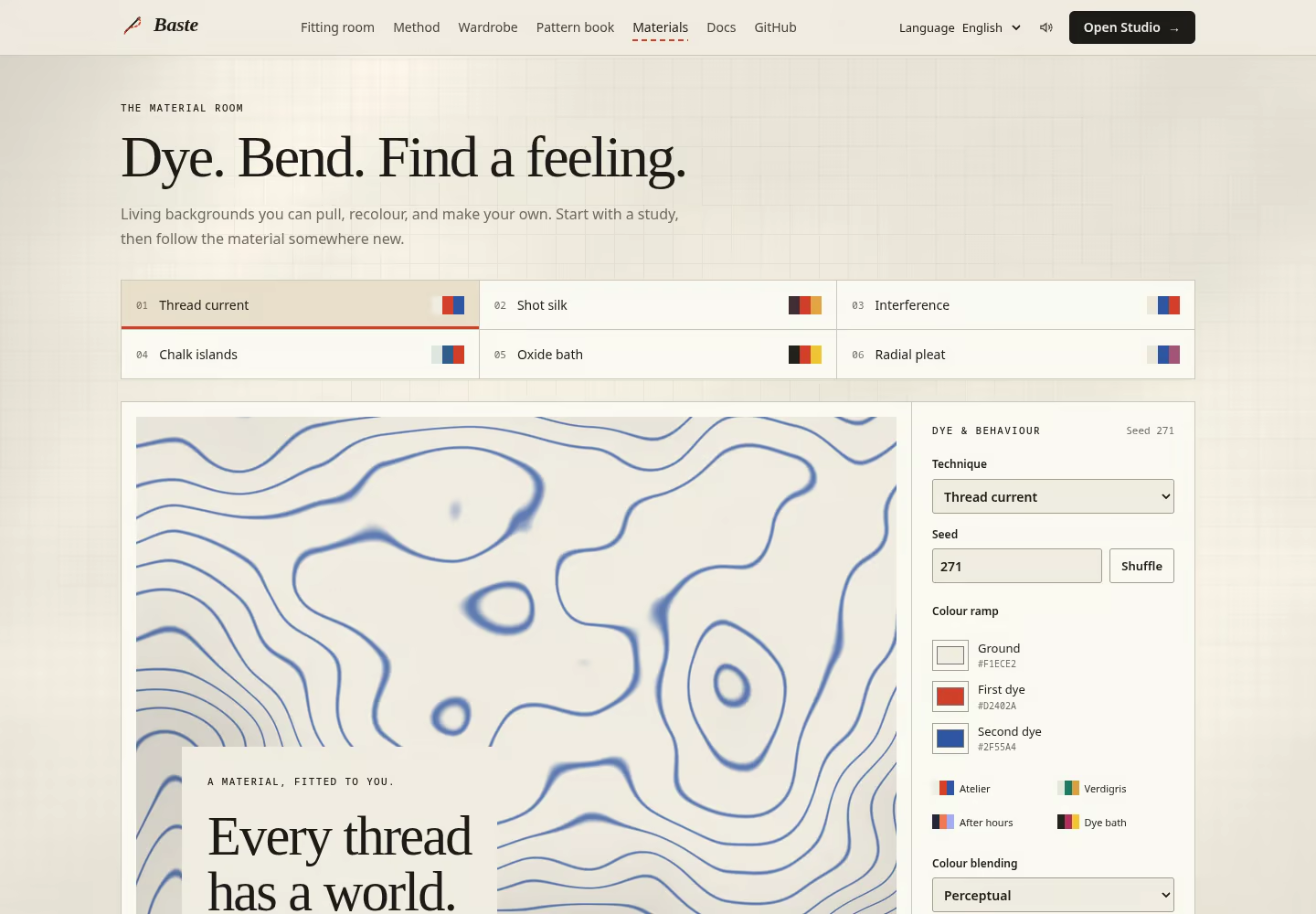
Know what is saved
Demo personas, references, feedback and documents stay in the current tab. Switching Studio tabs keeps them; reloading or reconnecting clears them. Files you download remain on your device.
Material adjustments are saved in this browser. Save recipe gives you a reusable file; Export PNG gives you an image. Keep both if you want to revise the material later.
Use Projects with a connected account to keep a brief and its design history. Check for a successful save before closing the page. If a save fails, keep your draft and retry after the connection returns.
Open this view →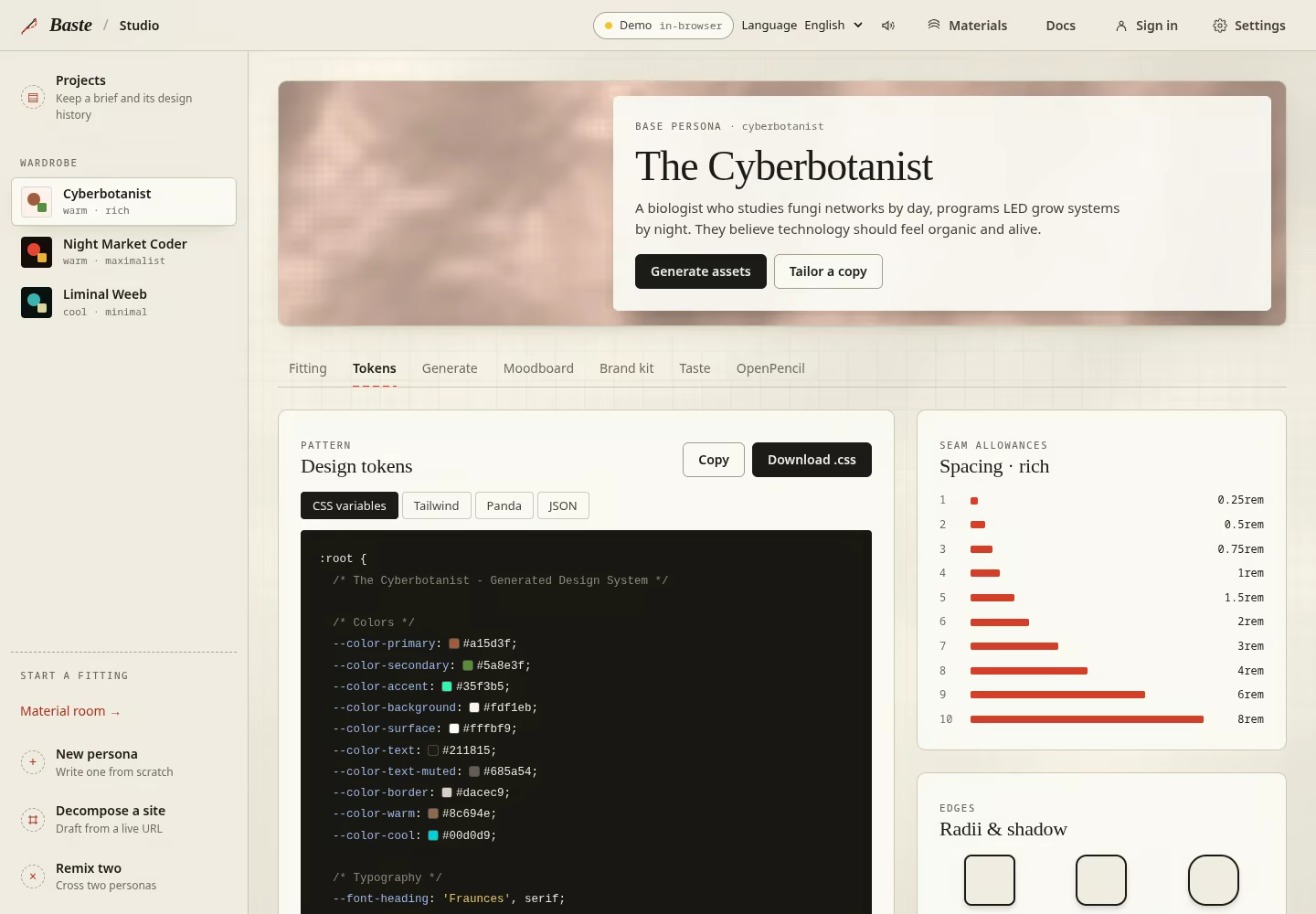
Troubleshoot a fitting
Work missing after a reload: check whether you were using Demo. That session is temporary, but downloaded files and saved material recipes remain available.
No new colours after editing a persona in Demo: the demo reuses its built-in examples. An empty Brand kit means no website has been captured. A broken moodboard image may need a new source URL.
Generation blocked: refresh your account and check the model, balance and maximum spend. Reduce the number of candidates if the plan exceeds your limit. You can continue drafting prompts while generation is unavailable.
Open this view →About the recordings
The current Studio recording shows Fitting, Material, Tokens, Moodboard and Taste. It is a silent, read-only tour with captions describing each step.
The narrated English and French tours were published on October 2, 2026. Their tab arrangement is older: OpenPencil now lives inside Tokens, and Material has its own tab. The instructions here use the current names. The downloadable published edition retains its original screenshots and developer appendix.
Keep a material recipe
Pause motion freezes the live preview. Motion controls are disabled when reduced motion is enabled. The live shader needs WebGL; if it is unavailable you can still edit colours and save a recipe. Reload after a lost WebGL context to resume the preview.
Export PNG downloads the current rendered background. Save recipe downloads the reusable JSON parameters; Load recipe reads that JSON file back. A recipe is editable configuration, not an image. Keep both if you want a finished image and the ability to revise it.
Material adjustments save in device storage, unlike the Studio demo’s in-memory personas. Use behind Baste stores a softer backdrop for this browser; Restore original linen removes that backdrop preference. Neither action changes the published site for other people.
Open this view →Inspect the house specimen
The specimen itemises Baste’s three typefaces, eleven working colours, stitch/chalk/pin motifs, cloth shader, icon set and three persona fittings. It is a reference for Baste’s own visual system, not a separate persona editor.
In the cloth shader, adjust Warp and Weft colours, Fold depth, Weave relief, Thread width, Folds per screen and Dye. Reset restores the example’s defaults. These specimen changes are temporary; there is no save or export control on this page.
Open this view →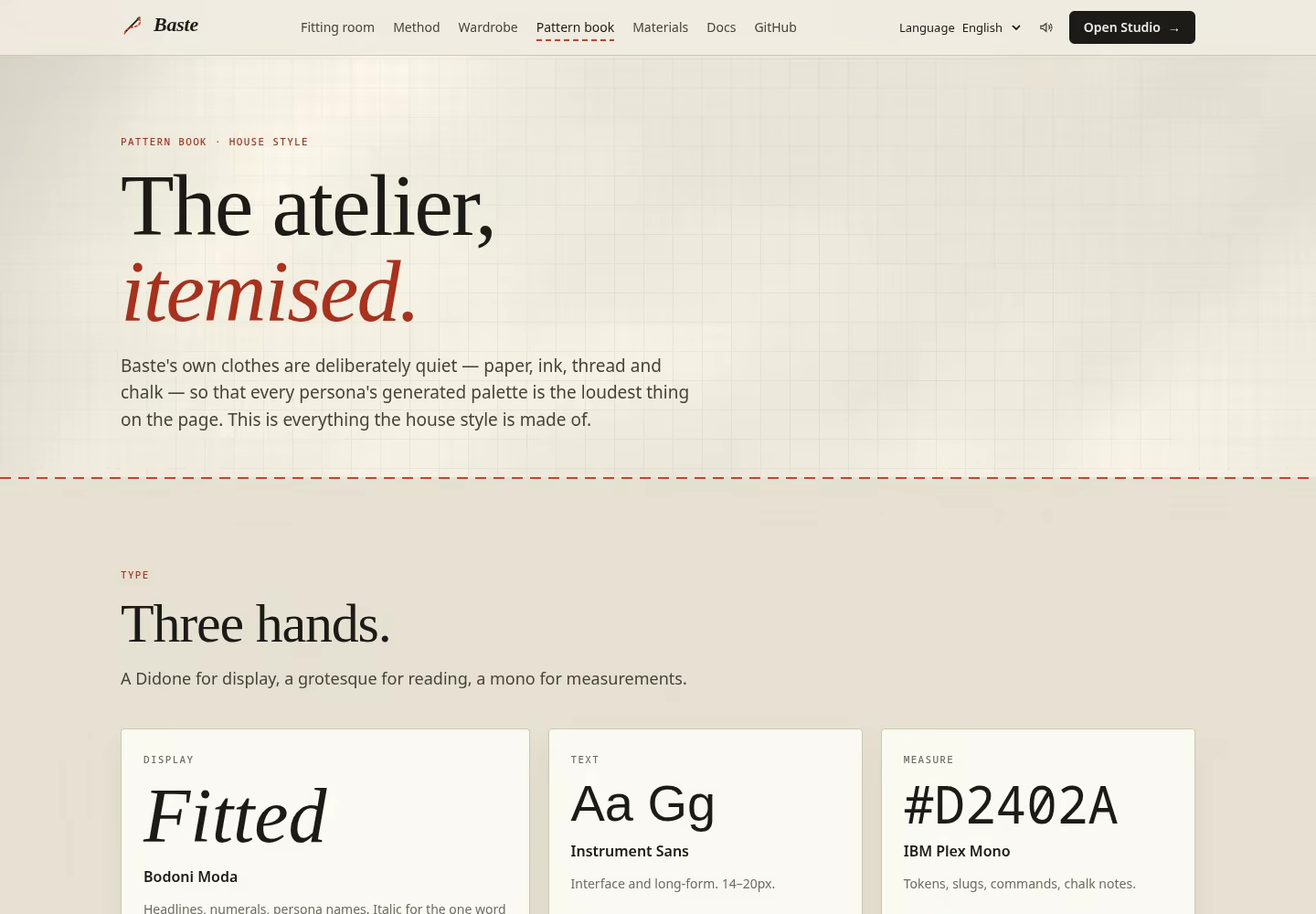
Keep the published edition
The illustrated October 2 guide is available for offline reading. It includes the original screenshots and a developer appendix. Use the chapters above for the current navigation.